How to Create a Set of Sizes
Grading sizes by percent:
- The order requires a shape in the sizes XS, S, M, L, XL.
- The size differences are preset by a percentage.
- The starting size is completed.
- The Dimensions
 tool window is open.
- Open the context menu in the M column title of the Dimensions table.
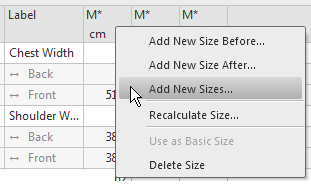
- Select Add New Sizes....
- The Add New Sizes dialog box appears.
- Activate the required sizes in the Sizes group box.
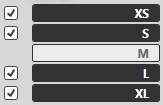
Add unlisted smaller sizes via the button at the top if necessary.
Add unlisted larger sizes via the button at the bottom if necessary.
- Rename the sizes if necessary.
- Enter the descriptions of the sizes.
- Activate the
 Grading check box.
- Select the
 By Percent option button in the Resizing group box.
- For the gradings enter the percentage via the
 edit box.
- Confirm with
 .
.
- In the measure table appear the added sizes with the calculated measures if the display
option
 is activated.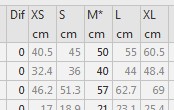
 Sets of Sizes
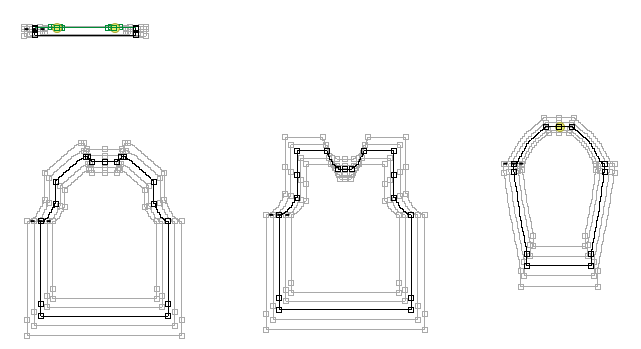
 - With the status icon activated all the sizes appear in the dimensioning view.
 |
With the activated
 icon the correction value columns appear additionally for each size. The correction
values are not graded. icon the correction value columns appear additionally for each size. The correction
values are not graded.
|
Grading sizes absolutely:
- The order requires a dimensioned shape in the sizes XS, S, M, L, XL.
- An absolute difference value is preset for each dimension.
- The starting size is completed.
- The Dimensions tool window is open.
- Enter a absolute difference for each dimensioning in the Dif column of the Dimension table.
- Open the context menu in the M column title of the Dimensions table.
- Select Add New Sizes....
- The Add New Sizes dialog box appears.
- Activate the required sizes in the Sizes group box.
Add unlisted smaller sizes via the button at the top if necessary.
Add unlisted larger sizes via the button at the bottom if necessary.
- Rename the sizes if necessary.
- Enter the descriptions of the sizes.
- Activate the Grading check box.
- In the Resizing group box select the Absolutely (difference from the table) option button.
- Confirm with .
- In the measure table appear the added sizes with the calculated measures if the display
option is activated.
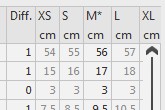
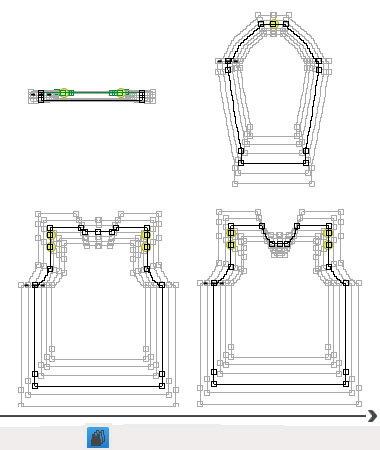
- With the status icon activated all the sizes appear in the dimensioning view.
|
|
After grading check and correct each size according to the order.
|
 How to Set the Reference Line for the View of All Sizes

