Fair Isle
How to define a Fair Isle narrowing at the body:
- Fair Isle narrowing by six steps is required.
- The dimensioned shape is opened in the Dimensioning View
 .
.
- The armhole narrowing startpoint and the shoulder endpoint are dimensioned horizontally
and vertically.
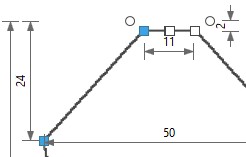
- Open the context menu for the left diagonal shape line of the narrowing in the back.

- Select the
 Line Properties.
 - The Line Properties tool window appears.
- Activate
 Show Line Preview.
- The selected shape line and the mirrored shape line appear in the line preview on
the right.
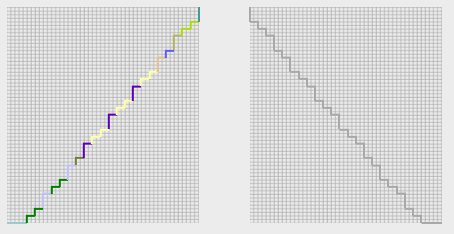
- Go to the Stepping Parameters group box.
- Select the
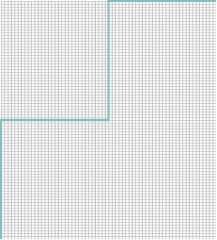
 Fair Isle option in the Stepping Kind
 list box.
- The detail view updates.
- Select the
 Quantity of Steps option button.
- The
 edit box on the right appears enabled.
- The edit box for the
 Quantity of markings option button appears grayed out.
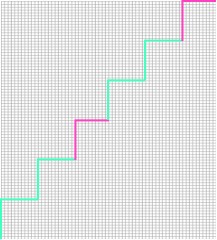
- Select the quantity 6 in the edit box.
- The detail view updates.
- Select the even-numbered option in the Stepping in the Height list box.
- Select the 1 Stitch option in the Cover Width list box.
- Select the underneath option in the Look of the Narrowing
 list box.
- Click on the line ID MM of the main row in the Line table.
- In the group box below appear the attributes of the main row.
- Go to the Attributes of line M section.
- Select the Fair Isle + Doubling, Stitch v module in the list box of the Multi-step Narrowing group box.
- Keep the value 0 in the Inner distance edit box.
- Click on the line ID S. 1 of the first sub-row in the Line table.
- In the group box below appear the attributes of the S. 1 row.
- Go to the Attributes of line S. 1 section.
- Keep the selected module in the list box of the Multi-step Narrowing group box.
- Select the value 7 in the Inner distance edit box.
- Click on the line ID S. 2 of the second sub-row in the Line table.
- In the group box below appear the attributes of the S. 2 row.
- Go to the Attributes of line S. 2 section.
- Keep the selected module in the list box of the Multi-step Narrowing group box.
- Select the value 7 in the Inner distance edit box.
- Click on the line ID S. 3 of the third sub-row in the Line table.
- In the group box below appear the attributes of the S. 3 row.
- Go to the Attributes of line S. 3 section.
- Keep the selected module in the list box of the Multi-step Narrowing group box.
- Select the value 7 in the Inner distance edit box.
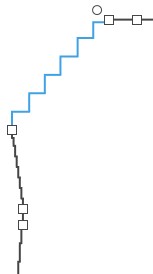
- The Fair Isle narrowing in the back is represented by a six-step shape line.
 |
A Fair Isle narrowing is defined alternatively via the quantity of markings instead
of the steps.
|