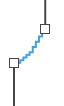
User Defined
How to determine the steppings in the armhole narrowing at the body manually:
- The dimensioned shape is opened in the Dimensioning View
 .
.
- The startpoint and endpoint of the armhole narrowing are dimensioned horizontally
and vertically.
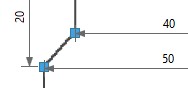
- Open the context menu for the left diagonal shape line of the narrowing of armhole
in the front.

- Select the
 Line Properties.
 - The Line Properties tool window appears.
- Activate
 Show Line Preview.
- The selected shape line and the mirrored shape line appear in the line preview on
the right.
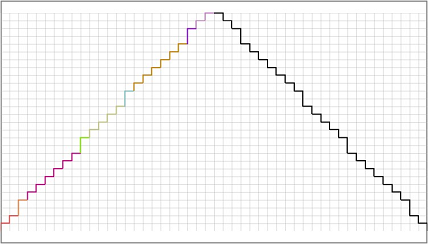
- Go to the Stepping Parameters group box.
- Select the
 User Defined option in the Stepping Kind
 list box.
- Target, actual and deviation values (by stitches) appear for X and Y.
Target Y = 28
Target X = -24
Actual Y = 28
Actual X = -24
Y Deviation = 0
X Deviation = 0 - Go to the Line table.
- Select the rows S. 4 to S. 9 with Ctrl and the left mouse button.
- Open the context menu in a selected row.
- Select Remove Rows.
- The detail view updates.

- Actual Y = 10
Actual X = -9
Y Deviation = -18
X Deviation = 15 - Go to the S. 1 row of the Line Table.
- Enter the height value 0 in the Steppings

 column.
- Enter the width value -4 in the Steppings
 column.
- Enter the repetition value 1 in the Factor
 column.
- The detail view updates.

- Actual Y = 8
Actual X = -11
Y Deviation = -20
X Deviation = -13 - Select the Binding-off option in the list box of the Function column.
- Go to the S. 2 row.
- Enter the height value 2 in the Steppings column.
- Enter the width value -2 in the Steppings column.
- Enter the repetition value 6 in the Factor column.
- The detail view updates.
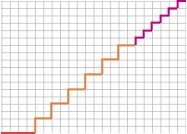
- Actual Y = 18
Actual X = -22
Y Deviation = -10
X Deviation = 2 - Go to the S. 3 row.
- Enter the height value 4 in the Steppings column.
- Enter the width value -2 in the Steppings column.
- Enter the repetition value 4 in the Factor column.
- The detail view updates.
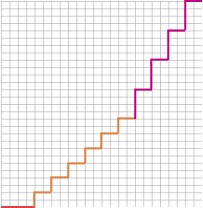
- Actual Y = 28
Actual X = -24
Y Deviation = 0
X Deviation = 0 - Module, width and look of the narrowing from the default settings are assigned in
the sub-rows with the Narrowing function.
 How to change the narrowing settings
 - The steppings in the armhole narrowing form a user defined J-curve.