How to Create a New Measure Graphically
- The dimensioned shape is open.
- Two marking points without dimensioning but at the desired distance
- The horizontal distance is to be fixed and added to the table
- Select the
 Add Vertical Dimensioning drawing tool.
Start Ribbon - Click the startpoint of the dimensioning.
- Drag the cursor to the target point of the dimensioning.

- Click the target point.
- The New Shape dialog box appears.
- Click the
 New Dimension option.
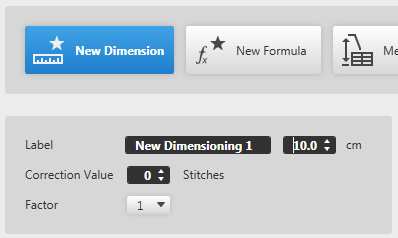
The distance of the points is displayed. (Here 10,0 cm)
The edit box for the designation of the new dimension gets active.- Click the edit box for the designation.
- Enter designation for the dimension.
New Horizontal Dimensioning - Confirm the input in the Dimensioning pop-up window with OK.
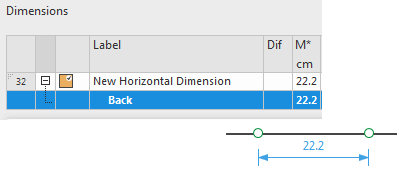
- A new line with the New Horizontal Dimensioning designation is added at the end of the Measure Table
- The new dimension is available for further dimensionings in the shape.
- The dimensioning arrow appears between the two points
 Note:
Note:
-
Clean up the table after completion:
Remove unused dimensions. -
With the
 New Formula option you can create a new formula for the active dimensioning.
 Start Ribbon
 Possible Following Steps: