How to Create New Formulas
Formulas
-
The formulas describe the dependencies of the dimensions within a size.
-
The formulas determine dimensions that depend on direct or indirect dimensions and mathematical functions.
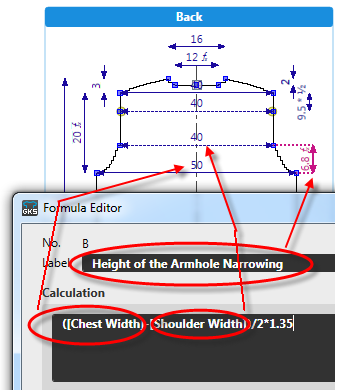
Create a new formula based on an existing dimension and a factor:
- The dimension shall be three times another dimension.
[Shoulder Drop] x 3 - Open the Dimensions
 tool window.
- Go to the Formula table.
- Open the context menu of the Row No. column.

- Select Add Main Row.
- The Formula Editor appears.
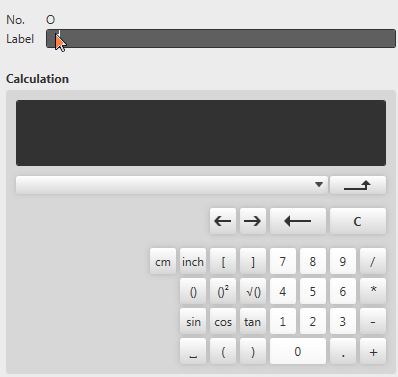
- Enter the designation of the formula.
- Select a dimension in the list box.

Shoulder Drop - Click on the * button.
- Click on the 3 button.
- The formula appears in the Calculation edit box.
[Shoulder Drop]*3 - Confirm with
 .
.
- The Formula Editor closes.
- A row with the formula is added at the bottom of the Formula table.
The new formula is available for dimensionings in the shape.
 |
In case of errors in the formula you receive the corresponding error message.
|
Create new formula based on an existing formula and a fixed length measure:
- A dimension is required that is 5 cm longer than the existing formula.
- Open the Dimensions tool window.
- Go to the Formula table.
- Open the context menu of the Row No. column.
- Select Add Main Row.
- The Formula Editor appears.
- Enter the designation of the new formula.
- Select a formula in the list box.

- Click on the + button.
- Click on the 5 button.
- Click on the cm button.
- The formula appears in the Calculation edit box.
- Confirm with .
- The Formula Editor closes.
- A row with the formula is added at the bottom of the Formula table.
The new formula is available for dimensionings in the shape.
|
|
The formulas (dependent dimensions) appear with letter ID at the end of the list.
 |
|
|
The length values are entered either in inches or in cm in the formula.
|
 You can proceed also like this:
More Information:

For what purpose do you use formulas?