How to Insert Markings for Buttons
How to Proceed:
- e.g. Slipover as Cardigan

- Button Tape at the Left with Markings for Buttons
- Button Tape at the Right with Markings for button holes
- Create two new dimensions.
Quantity of Buttons
This value serves to calculate the distance of buttons
Distance of First Button Above Waistband 
- Create new formulas.
Horizontal Distance of Buttons
Vertical Distance of Buttons 
- Insert marking points.
e.g. 6 points, as specified in the Quantity of Buttons measure. - Position the marking points graphically.
Marking points should form a line before you put the dimensionings. 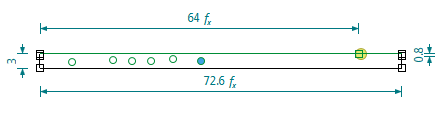
- Insert the horizontal dimensioning for the first button starting from the left.
 + Distance of First Button Above Waistband
 - Insert the horizontal dimensioning from the first button to the second. + Horizontal Distance of Buttons
- Copy the dimensioning and paste it between the next buttons.
Double-click to add the copied dimensioning four times.

- Insert vertical dimensioning for the first button starting with the button on the
lower left.
 + Vertical Distance of Buttons
 - Copy the dimensioning and paste it to the next buttons.
Double-click to add the copied dimensioning five times.

- Run the Properties function in the context menu of the marking point.
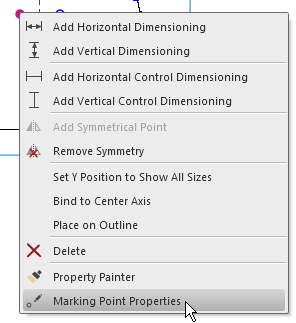
- Select a Knitting Element as marking.

The inserting direction does not matter in this case. - Confirm the dialog box with
 .
.
- Transfer the new property to the next marking points.
 Property Painter
How to Define and Transfer Properties of Marking Points - Copy the single shape and paste it.
Duplicate function in the context menu of the edit field. - Delete the Button Tape and Collar at the Right single shape.
In the Fabric Pieces and Sizes tool window.
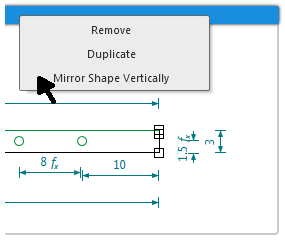
- Mirror the single shape.
 Flip Vertically function in the context menu of the edit field.
- Rename the single shape.
Button Tape and Collar at the Left Copy to Button Tape and Collar at the Right - Markings with the desired distance are entered in both button tapes.
- The distances can be modified commonly and can be graded.
Possible Following Steps:
- Add or remove further buttons for special sizes.
Further measures or formulas may get necessary. - Replace the markings for button holes (button tape at the right) by separation symbols
in the pattern (M1plus).
