Context Menu
-

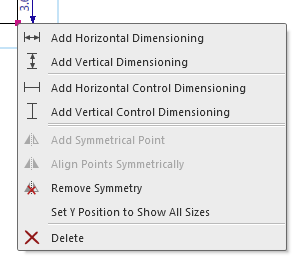
Draws a dimensioning with horizontal positioning between two points. -

Draws a dimensioning with vertical positioning between two points. -
 How to Assign New Dimensionings
-
 Draws a control dimensioning with horizontal positioning between two points.
 -
 Draws a control dimensioning with vertical positioning between two points.
 -
How to Create Control Dimensionings
-
 Adds the mirrored shape point in correspondence to the selected point.
 not with symmetrical shape points
 -
 Aligns two points symmetrically by click on them successively
 -

Cancels the binding to the opposite shape point. only with symmetrical shape points -
only together with 
-
How to Set the Reference Line for the View of All Sizes
-

Removes the selected shape point.
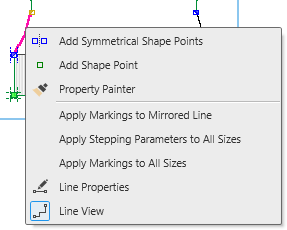

Adds a shape point and its mirrored point.
Adds a shape point.- How to Insert New Shape Points

Copies the properties of a line:- Stepping Kind
- Attributes of the Line
- Markings of Line
- How to Transfer Line Properties
Applies the markings and their properties to the line on the opposite.
Markings will possibly be removed to keep the opposite line symmetrical. only with lines with markings defined by symmetrical shape points.
Applies the attributes to this line within each of the size. only for shapes having different sizes.
Applies the markings and their properties to this line within each of the sizes.
Markings will possibly be removed to keep the other sizes corresponding. only for shapes having different sizes.
Opens the Line Properties dialog box. How to Determine Individual Steppings
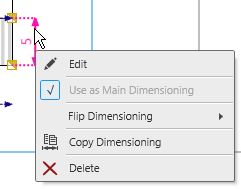

Opens the direct input of the dimensioning.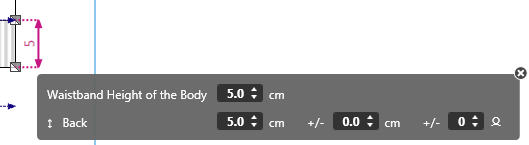

The active dimensioning gets the main dimensioning.
You can hide all reuses of this dimensioning. together with
  The check mark shows the usage as main dimensioning.
- Faire pivoter la cote vers le haut
Keeps the position of the upper shape point and shifts the lower point upward. - Faire pivoter la cote vers le bas
Keeps the position of the lower shape point and shifts the upper point downward. - How to Flip a Vertical Dimensioning
- Faire pivoter la cote vers la droite
Keeps the position of the right shape point and shifts the left point to the right. - Faire pivoter la cote vers la gauche
Keeps the position of the left shape point and shifts the right point to the left. - Inverser la cote
Exchanges the vertical or horizontal position of the shape points. - How to Invert a Dimensioning
 Copies the active dimensioning for reuse.
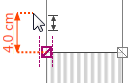
- Click on a new startpoint, move the cursor to a new target point and click on the target point.
-
Removes the active dimensioning.
The corresponding measure is kept in the table.
-
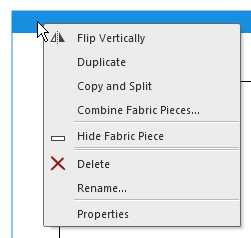
 Mirrors the fabric piece at the vertical center axis.
A multiple selection is possible Symmetrical fabrics do not differ in the result -
Makes a copy of the fabric piece and inserts it.
A multiple selection is possible
Example: Back (copy) -
Copies the fabric piece and separates the left and right polyline to individual fabric pieces. -
Assembler moitiés de panneau tricoté...
Combines the left and right polyline of individual fabric pieces to one new fabric piece.Combine Fabric Piece Halves (dialog box) -
Shows the fabric piece minimized only.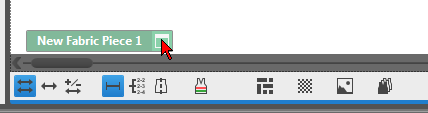
You can show it again by clicking on the window icon.Controls of the View -
Deletes the fabric piece after prompt.
A multiple selection is possible
The query appears in case of multiple selection for each fabric piece individually. -
Opens the Name edit box of the fabric piece. - Overwrite name and quit the edit box.
-
Opens the Properties of Fabric Piece dialog box.
-

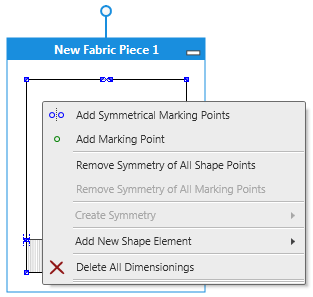
Adds a marking point and its mirrored point. -
 Adds a marking point.
 -
How to Insert Markings for Buttons
-
Cancels symmetry of all shape points and with it of all lines. -
Cancels the symmetry of all marking points. -
-
Aligns all the shape points, and with it all lines, of the right side symmetrically to the left side.
Missing shape points will be added.
Surplus of shape points will be deleted. -
Aligns all the shape points, and with it all lines, of the left side symmetrically to the right side.
Missing shape points will be added.
Surplus of shape points will be deleted. -
Aligns all the marking points of the right side symmetrically to the left side.
Missing marking points will be added.
Surplus of marking points will be deleted. -
Aligns all the marking points of the left side symmetrically to the right side.
Missing marking points will be added.
Surplus of marking points will be deleted. -
Charger l'image de fond pour le panneau tricoté...
Opens the Open dialog box in order to select a graphic file. - Supported formats: *.bmp; *.jpg; *.png.
-
Add New Shape Element
Adds a new shape element to the fabric piece.
You determine the type and the symmetry of the shape element in the submenu. -
 Encolure
Symétrique
Asymétrique -
 Encolure remplie !
Symétrique
Asymétrique -
 Gousset
Symétrique
Asymétrique -
 Trou
Trou
Symétrique
Asymétrique -
 Pince
Pince
Symétrique
Asymétrique -
 Intérieur de la forme
Symétrique
Asymétrique - Example
-
Effacer toutes les cotes
Removes all dimensionings from the fabric piece without changing its geometry.
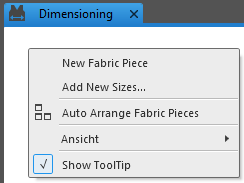
Adds a new, not dimensioned fabric piece.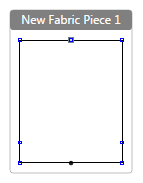
 For example: Add the Fabric Pieces for Collar and Armhole Cuff
Opens the Add New Sizes dialog box. Add New Sizes
Arranges the fabric pieces clearly within the dimensioning view.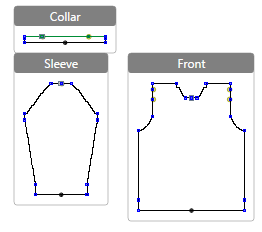
- View
- Always Show Fabric Piece Border
Shows the frame around the edit box not only with mouse over. - Always Show Title Bar
Shows the title bar of the edit box not only with mouse over. - Key combination: J
- Load Background Image...
Opens the Open dialog box in order to select a graphic file. - Supported formats: *.bmp; *.jpg; *.png.
- The image in the dimensioning view with title and handles
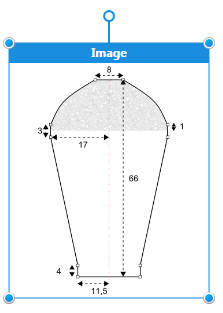
- Continue:
Context menu Add New Fabric Piece Based on Image -
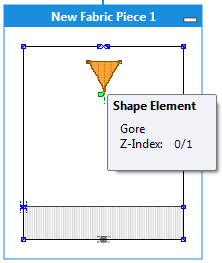
Shows information about the object on which the cursor is positioned.
Key combination: , (Comma)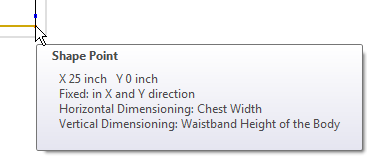
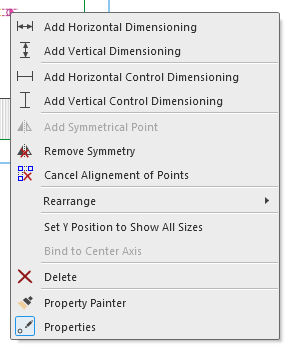
-
Ajouter une cote horizontale
Draws a dimensioning with horizontal positioning between two points. -
Ajouter une cote verticale
Draws a dimensioning with vertical positioning between two points. -
Ajouter une cote de contrôle
Draws a control dimensioning with horizontal positioning between two points -
Ajouter une cote de contrôle verticale
Draws a control dimensioning with vertical positioning between two points. -
Ajouter un point symétrique
Adds the mirrored marking point in correspondence to the selected point. not with symmetrical marking points -
Annuler la symétrie
Cancels the binding to the opposite marking point. only with symmetrical marking points -
 Annuler l'alignement des points
Cancels the alignment in vertical or horizontal direction.
Click the desired points. -
Aligner à nouveau
Moving the position of the marking point.
Commands in the Aligner les objets:
-
 À l'avant-plan
Brings the selected object to the foreground. -
 Niveau vers l'avant
Brings the selected object one layer to the front. -
 en arrière-plan
Sends the selected object to the background. -
 Niveau vers l'arrière
Sends the selected object one layer to the back.
The commands affect objects of the same kind only.
- Overlapping knitting ranges
- Knitting ranges are placed directly upon the basic element
- Fading-out of the basic element always covers the knitting range
- The fix order of shape elements from bottom to top:
-
Intérieur de la forme
-
Gousset
-
Pince
-
Trou
- You can arrange the shape elements of the same type.
-
Déterminer la position Y pour l'affichage de toutes les tailles Only together with Afficher toutes les tailles How to Set the Reference Line for the View of All Sizes
-
SupprimerRemoves the selected marking point.
-
 Reporter les propriétés
Copies the properties of the selected marking point by click on it and transfers it to the marking point you click on next. -
How to Define and Transfer Properties of Marking Points
-
 Propriétes du point de marquageOpens the Marking Point Properties tool window.
 = tool window is open.
- Removes all settings concerning the start
- Knitting elements and other options
- Stitch Density
- Knitting Elements for Doubling
- Shape points and dimensions will be kept
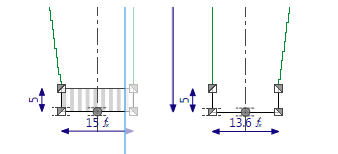
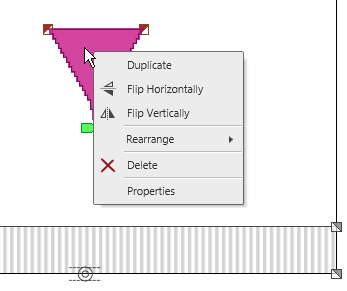
Makes a copy of the shape element and inserts it.
Mirrors the shape element at the vertical center axis.
Mirrors the shape element at the horizontal center axis.
Commands in the Aligner les objets:
- À l'avant-plan
Brings the selected object to the foreground. - Niveau vers l'avant
Brings the selected object one layer to the front. - en arrière-plan
Sends the selected object to the background. - Niveau vers l'arrière
Sends the selected object one layer to the back.
The commands affect objects of the same kind only.
- Overlapping knitting ranges
- Knitting ranges are placed directly upon the basic element
- Fading-out of the basic element always covers the knitting range
- The fix order of shape elements from bottom to top:
- Intérieur de la forme
- Gousset
- Pince
- Trou
- You can arrange the shape elements of the same type.

Deletes the shape element without prompt.
Opens the Shape Element Properties dialog box for the active shape element. Shape Element Properties