Line Properties
The title of the tool window shows the following attributes of the line:
-
Current size
-
Current fabric piece
-
Current side of the line referring to the endpoint
You can call up the Shape Line Properties dialog box in the context menu of a shape line. Shape Line Properties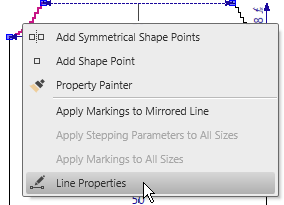
Example: Line Properties of Size M – Sleeve - Left
The dialog consists of the following areas:
Line Navigation
-
 Back
Back
Switch to the previous line. -
 Next
Next
Switch to the following line. -
 Opposite
Switch to the opposite, mirrored line.
-
 Line View
Shows the current line in details to check the stepping. -
Length of the shape line:
Shows the length of the current shape line approaching the stepping.
The length will be calculated by the quantity of stitches.
Stepping Parameters
Stepping Kind
Select the settings for the stepping kind.
-
 Straight Line
 -
 J-curve
J-curve -
 r-curve
r-curve -
 S-curve
S-curve -
 Angled to Outside
Curve profile angled towards outside
Angled to Outside -
 Angled to Inside
Curve profile angled towards inside
Angled to Inside -
 Fair Isle
Fair Isle -
 User Defined
User Defined -
 Preset Stepping
You will get the variants to the preset stepping by Propose Stepping...
Preset Stepping
 |
The selected stepping kind and the line function determine the other options:
|
Line Height Calculation
Line Height Calculation
-
undefined
-
Total height of the line with devider
-
End row of the line with devider
The calculation of the height determines the divisibility of the quantity of pattern rows
Divider 
Enter a value by which the height should be divisible.
Example:
2 results in even-numbered pattern rows
3 results in a height of the shape line which can be divided into steps of three.
Offset
Enter a distance at which the height calculation starts
Stepping in the Height
Stepping in the Height
-
undefined
-
Steps on even-numbered rows
-
Steps on odd-numbered rows
-
Even-numbered rows at the left, odd-numbered rows at the right
-
Odd-numbered rows at the left, even-numbered rows at the right
Step Width
Set the width of the steps and allow binding-off.
Min. Step Height
Set the minimum height of the steps.
Min. Step Height
Specify the minimum height of the last step at the end of the widening.
Binding-off at Line Foot
 Binding-off at Line Foot
Allow binding-off the horizontal area at the line foot.
-
Line Width by Stitches

Specify the part of the horizontal line for binding-off.
Example for a step width of 4: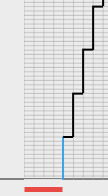
-
Protect Value
Sets a fixed binding-off width independent to grading and to the width of the shape line. : The binding-off width will be widened or reduced accordingly from size to size.
Starting Width at the Line Foot
Starting Width
Allow widening the horizontal area at the line foot.
-
Stitches
Specify the part of the horizontal line for widening.
Example for a step width of 4: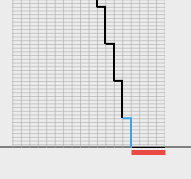
-
Protect Value
Sets a fixed width at line foot independent to grading and to the width of the shape line. : The width at the line foot will be widened or reduced accordingly from size to
size.
Settings and Deviations
Preset values, achieved values and deviations over the whole stepping will be displayed in case of a user defined stepping.
-
Stitch rows for the height in vertical orientation:
-
Y Target
-
Y Actual
-
Y Deviation
-
Wales for the width in horizontal orientation:
-
X Target
-
X Actual
-
X Deviation
- Change values individually or add steppings in order to achieve the endpoint without deviation.
Line Table
-
The columns of the line table and the context menu correspond to the following properties
-
Basic Type of Shape
-
Selected Options
-
Selected Kind of Stepping
-
With the context menu Show Properties of the D row, you activate or deactivate together the columns for the functions.
The columns of the Line table:
Line ID
-
D = Row with default settings
-
M = Main Line
-
S.n = Sub-line with consecutive numbering
Index Color
Identification color of the line
- Click the color to change the color value.
How to Change the Colors
cm
-
Height
Height of the shape line by centimeters -
Width
Width of the shape line by centimeters
Stitches
-
Height
Height of the shape line by stitches -
Width
Width of the shape line by stitches
Inch
-
Height
Height of the shape line by inches -
Width
Width of the shape line by inches
Steps
-
Height
Height of the stepping by stitches -
Width
Width of the stepping by stitches
Steps (hand-knitting)
-
Height [Courses]
Height of the stepping by courses -
Width
Width of the stepping by stitches
Factor
-
Repetitions of the step

-
Repetitions of the step by courses (hand-knitting)

-
In the context menu of the cell you can protect the factor against automatic editing (e.g. preference point).
-
Set Value
-
Free Value
Group Factor
-

Repetitions of the grouped lines or sub-lines.
Example: 4 sub-lines with 3-fold repetition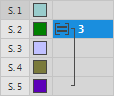
Rest
-
Height
Remaining height of the stepping by stitches -
Width
Remaining width of the stepping by stitches
Function
Select function and allocate it to the shape line.
-
Without Function
-
Goring
-
Narrowing
-
Multi-step Narrowing
-
Binding-off
Width (of the function)
Width of the shape edge by stitches
The selected function will be done with this quantity of stitches.
E.g. narrowing by 6 stitches.
Attributes
Attributes
Gore
With Knitting-off Rows
Options...
With the active check box you can open the Knit-off Gore Options dialog box
Knit-off Gore Options (dialog box)
-
Narrowing
Allocate the knitting element for narrowing in this shape line.
The knitting elements of the Narrowing folder and its subfolders are offered. -
The standard module is represented in italics.
-
Width (cover width)
Specify number of stitches that are covered -
1 to 6 stitches
-
The standard value 6 is represented in italics
-
Look
Determine the appearance of the narrowing stitches -
 above
above
The narrowing stitches lie on the basic pattern -
 underneath
The basic pattern lies on the narrowing stitches
Fade-out
Fade-out
-
Allocate the knitting element for fading-out in this shape line. -
The knitting elements of the Fade-out folder and its subfolders are offered.
-
The standard module is represented in italics.
-
Width

Specify fade-out width -
No automatic fade-out with jacquard
Prevents Jacquard areas from fading-out. -
Use module color
Apply the yarn color of the fade-out module.
Multi-step Narrowing
Allocate the knitting element for Fair Isle or Doubling in this shape line.
The knitting elements of the Multi-step Narrowing folder and its subfolders are offered.
Binding-off
Allocate the knitting element for Binding-off in this shape line.
The knitting elements of the Binding-off folder and its subfolders are offered.
The standard module is represented in italics.
-
Widening
Allocate the knitting element for Widening in this shape line. -
The knitting elements of the Widening folder and its subfolders are offered.
-
The standard module is represented in italics.
-
Width (cover width)
Specify number of stitches that are covered -
1 to 6 stitches
-
The standard value 6 is represented in italics
Markings
Table of line markings:
-
Running numbering
-
Index Color
Click the color to change the color value. -
XStitches
Horizontal distance to the selected anchor point of a shape line -
YStitches
Vertical distance to the selected anchor point of a shape line -
Anchor Point
Marking refers to the startpoint or endpoint of the shape line. -
Startpunkt
-
Endpunkt
-
Width
Inserting width of the knitting element (e.g. for fashioning marks) -
Knitting Element
Select knitting element in the drop-down list.
The default selection offers start modules for the V-neck. -
Inserting Direction
Inserting direction of the knitting element -
nach links
Insert knitting element to the left -
nach rechts
Insert knitting element to the right
|
|
The markings of a line cannot be mirrored.
|
Behavior of All Sizes
Settings on the behavior of a line:
Following settings will affect all sizes.
-
Behavior
Determine the basic properties of the line.Line for the Start
Area for the start within the total height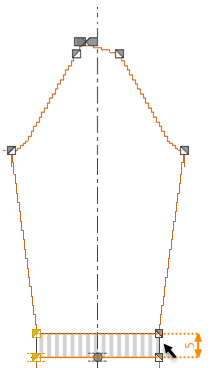
This area will not be rasterized in the M1plus.
A knitting element for the start will be inserted in the M1plus instead of the area below the basic pattern. The height of the start is specified via RS1. -
Fill Neckline
The area of the neckline remains within shape for the yarn carrier to knit continuously. During further processing the cut-out will be performed with scissors along the marking or the narrowings. -
Activate the checkbox of the opposite line as well if these lines are not symmetrical.
-
With a crew neck, activate the checkbox of the horizontal line with binding-off as well.
-
 Beside necklines, this function can be used for all areas outside shape edged by
shape lines.
Beside necklines, this function can be used for all areas outside shape edged by
shape lines.
Line View
You activate the Line View via the Line View button of the Properties ribbon group or in the Line Properties tool window.
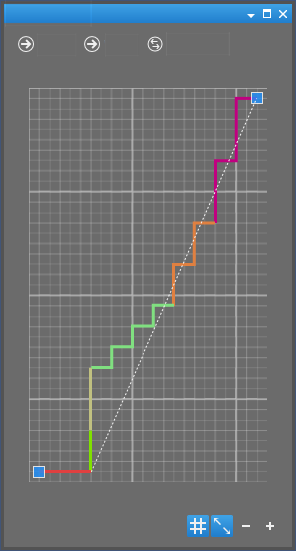
Line Navigation
-
Back
Switch to the previous line. -
Next
Switch to the following line. -
Opposite
Switch to the opposite, mirrored line.
View Options
-
 Zoom In
Look at details of the line. -
 Zoom Out
Look at the curve line, add preference points. -
 Fit Content Automatically
Overview the current line. -
 Show Stitch Grid
Activate the minor grid for needle positions. -
Zoom In
Look at details of the line. -
Zoom Out
Look at the curve line, add preference points. -
Add Preference Point context menu
You can influence the path of a preset stepping by preference points.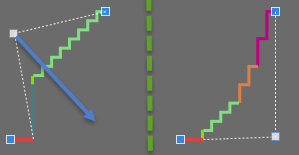
You remove the preference points by the Delete context menu.
 How to Change the Stepping of a Line:
Preset Stepping